Last updated: October 13, 2026
Fire TV Vega OS Compatibility: Check Player Support First
TL;DR: Fire TV Vega OS compatibility depends on the exact player build, not just the Fire TV name or the “4K” label. Identify your full model and software version, then check the app’s Amazon listing and its publisher’s current support page for that OS and model. Fire OS support does not prove Vega OS support.
Key takeaways
- Fire OS is based on Android; Vega OS is a separate app-development target.
- Some similar Fire TV Stick names use different operating systems.
- Confirm support for the exact model, OS, and country before setup.
- Check the official app listing and the player publisher’s own compatibility notes.
- This is a research-based guide; no hands-on device test is claimed.
Fire TV Vega OS compatibility is the first detail to check when you are choosing a Fire TV Stick for a particular player. Amazon now lists Fire TV devices running both Fire OS and Vega OS, and a shared “Fire TV” label does not mean every app supports both systems.
The safest check is simple: match the full device model to its operating system, then confirm the player publisher supports that exact combination. IPTV-PREMIUM’s setup guides also note that app availability varies by model, operating system, and country.
Fire TV Vega OS compatibility starts with the OS difference
Fire OS and Vega OS are separate operating systems, so app support for one does not guarantee support for the other. Amazon describes Fire OS as a fork of Android. It presents Vega OS through a separate developer path and SDK, which means an app publisher may need to provide a Vega-compatible version.
This difference matters even when two sticks look alike or both support 4K video. Video resolution describes the picture output; it does not tell you which operating system the device runs or which player apps are available.
| What you see | What it tells you | What it does not confirm |
|---|---|---|
| Fire OS | Amazon’s Android-based Fire TV platform | That every Android app or every player is supported |
| Vega OS | A separate Amazon operating system with its own app-development support | That a Fire OS or Android build also works on Vega |
| “Fire TV” or “4K” in a product name | The device family or a video capability | The exact generation, OS, app catalogue, or country availability |
Amazon’s developer pages document Fire OS and Vega OS separately. For a reader, that means the app publisher’s current compatibility statement is more useful than an old setup video or a device name on its own. See Amazon’s Fire OS overview and its Appstore operating-system documentation.
Which Fire TV Stick models use each OS?
Amazon’s model list shows Vega OS on several newer sticks and Fire OS on other recent models. The table below reflects Amazon’s developer documentation checked on October 13, 2026. Check the full generation and year; “4K” appears in more than one model name.
| Full model name | Amazon-listed operating system | Why the name needs care |
|---|---|---|
| Fire TV Stick 4K (3rd Gen, 2026) | Vega OS 2.0 | The 2026 “4K” model is not the 2023 4K (2nd Gen). |
| Fire TV Stick HD (2026) | Vega OS 1.1 | Check the year and generation; earlier HD sticks use other software. |
| Fire TV Stick 4K Select (2025) | Vega OS 1.1 | “Select” is part of the model name. |
| Fire TV Stick 4K Plus (2025) | Fire OS 8 | “Plus” identifies a different model from “Select.” |
| Fire TV Stick 4K Max (2nd Gen, 2023) | Fire OS 8 | Use the generation in Amazon’s model list, not just “4K Max.” |
Amazon’s current Fire TV device specifications and OS model table are the references for these entries. The available models and names can differ by marketplace.
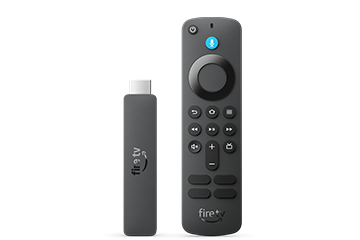
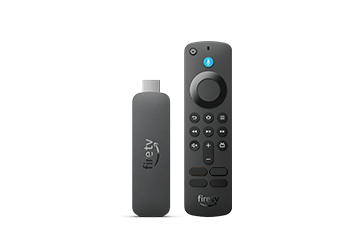
These source-hosted product images are embedded from Amazon’s public specification page; they have not been downloaded into this article’s media folder.
How do I check my Fire TV model and OS?
Check the model name and software version on the device before checking player support. If you are shopping, read the complete model name and generation on the listing. If you already own the stick, use its Settings and About or software-version screen.
- Open Settings on Fire TV.
- Look for My Fire TV, Device, or Device & Software. Menu names vary by model and software version.
- Open About or the device information page and find the software version.
- Write down the exact model name and year as well as the OS name/version shown.
- Compare both details with Amazon’s current model list. If your menu differs, use Amazon’s model-specific Fire TV help.
Amazon’s Vega documentation uses My Fire TV > About for the software version. Fire OS documentation describes a different Settings path on some devices. Do not assume your stick changed systems because the home-screen design changed; verify the software-version details.
How do I verify a compatible player before setup?
Use the exact Fire TV model as the compatibility target, then look for explicit OS support from the player publisher. A listing for “Fire TV” or “Android” may leave the Vega question unanswered.
- Identify the model. Record its full name, generation, and year.
- Confirm its OS. Check the About/software-version screen and Amazon’s current table.
- Check Amazon’s app listing. Search the Amazon Appstore on the device or in your marketplace. Amazon help recommends checking the listing’s “Works With” details for the Fire TV model when that section is available.
- Read the player publisher’s support page. Look for the specific OS or model, not just a general claim such as “works with Fire TV.” App publishers may maintain separate versions for different systems.
- Check your country’s store listing. App availability can vary by country, as well as by device and operating system.
- Ask the publisher if the wording is unclear. Get confirmation for the exact model and OS before entering your IPTV access credentials.
Amazon’s consumer help page advises readers to check the app detail page’s “Works With” section for model compatibility. IPTV-PREMIUM’s live setup index likewise says app availability changes by model, OS, and country. Neither an access key nor a player’s name can override an unsupported app build.
If the app opens but stops at a loading screen, follow the separate Fire TV app troubleshooting checks. That guide covers an app that is already installed; this page covers the model and operating-system check before setup.
What should I choose for my setup?
Choose based on the player you need and its confirmed support, not on resolution or a shared Fire TV label. If the publisher has not named Vega OS or your exact model, treat compatibility as unconfirmed.
| Your situation | Next step |
|---|---|
| You already own a Fire TV Stick | Check its full model and OS, then verify the player’s listing and publisher support before setup. |
| You are comparing two Fire TV models | Compare the full model names and OS entries in Amazon’s current table; do not compare only “HD” or “4K.” |
| The player publisher names Fire OS but not Vega OS | Ask the publisher whether the exact model is supported. Until then, do not assume support. |
| The player is not listed in your device’s app store | Check the publisher’s supported devices and your marketplace, or choose a device the publisher explicitly lists. |
For setup steps for the players IPTV-PREMIUM currently documents, start with the XCIPTV guide or another guide listed on the setup index. Confirm the current app version and device support before using the steps.
Frequently asked questions
Is Fire OS based on Android?
Yes. Amazon describes Fire OS as a fork of Android. That shared foundation does not mean every Android app is supported: app-store availability and the app publisher’s device support still matter.
Is Vega OS an Android update?
No. Amazon documents Vega OS as a separate operating system with its own developer documentation. Check for explicit Vega support instead of assuming that an app built for Fire OS or Android will run on it.
Does “Fire TV Stick 4K” tell me which OS I have?
No. Amazon lists a 2026 Fire TV Stick 4K (3rd Gen) with Vega OS and a 2025 Fire TV Stick 4K Plus with Fire OS 8. Use the full model name, year, and generation to identify the software.
How can I check whether a Fire TV app supports my model?
Check Amazon’s app detail page for its “Works With” information when available, then read the player publisher’s support page for the exact model and OS. If the listing does not identify your device or Vega OS, ask the publisher before setup.
Does Fire OS support guarantee Vega OS support?
No. Amazon documents separate Fire OS and Vega OS app-development paths. A publisher may need to provide a compatible build for each system, so confirm support for the operating system shown on your device.
Why does app availability vary by country?
App stores can show different listings by marketplace, and publishers may limit where an app is offered. Check the store connected to your country and the publisher’s regional support information before relying on a listing.
Conclusion
For Fire TV Vega OS compatibility, the reliable sequence is: identify the exact stick, check its OS, and confirm the player’s support for that model and country. Similar names and 4K labels are not enough to prove an app will work.
Use the device and compatible-player setup guides for the next setup step. Keep IPTV access credentials private; availability varies by app, device, operating system, and country.
Sources and references
- Amazon: Fire OS Overview (model and OS table checked October 13, 2026).
- Amazon: Identify Fire TV Devices (model identifiers and OS versions checked October 13, 2026).
- Amazon: Fire TV Streaming Media Player specifications (checked October 13, 2026).
- Amazon Appstore: Developer documentation (Fire OS and Vega OS sections checked October 13, 2026).
- Amazon: Getting started with Vega OS development (July 13, 2026).
- Amazon: Which Fire TV Device Do I Have? (app “Works With” guidance checked October 13, 2026).
About this guide
Author: IPTV-PREMIUM. This is a research-based setup guide checked against Amazon’s current Fire TV documentation on October 13, 2026. No personal device test or compatibility result is claimed. IPTV-PREMIUM sells fixed-duration access keys for compatible third-party players; this guide does not confirm that any specific player works on every Fire TV model.