Tag: Compatible players

  • My SIPTV: What the Name Means and How to Check Support

    My SIPTV: What the Name Means and How to Check Support

    Last updated: October 16, 2026

    My SIPTV: What the Name Means and How to Check Support

    TL;DR: “My SIPTV” is ambiguous. Smart IPTV’s official site calls its product Smart IPTV and lists a “My List” feature, but the phrase may also refer to a third-party portal. Check the exact domain, app publisher, device model, operating system, and official store listing before using it. Do not assume a Fire TV or Android listing confirms Vega OS support.

    Key takeaways

    • The official product name on siptv.app is Smart IPTV; “My List” is a listed feature.
    • “My SIPTV” alone does not identify which site or app a search result means.
    • Smart IPTV is a player; it does not itself provide channels or a content catalogue.
    • Verify app publisher, domain, device model, OS, and country availability before setup.
    • This is a research-based guide; no hands-on compatibility test is claimed.

    If you searched for My SIPTV, you may be looking for Smart IPTV’s app, its “My List” feature, or a separate website using similar wording. The official Smart IPTV site uses the product name Smart IPTV and lists “My List” in its navigation; the phrase “My SIPTV” by itself does not confirm that a particular portal is official.

    Start from the official product website and the app store on your device. Check the publisher and supported operating system before entering IPTV access credentials.

    What does “My SIPTV” mean?

    There is no single meaning that can safely be inferred from those two words alone. The official site reviewed for this guide brands the app as Smart IPTV and presents a “My List” feature. A search result or message saying “My SIPTV” could instead be a provider’s customer page, a saved-list page, or an unrelated site.

    Before signing in, compare the full web address with the address linked from the official Smart IPTV website. A similar spelling, search advertisement, or logo is not proof that a page is connected to the app publisher. Do not share your password, playlist URL, or IPTV access credentials with a page you cannot verify.

    What is Smart IPTV?

    Smart IPTV is a media-player app, not a channel provider. Its official site describes the product as a player and has separate instructions and list-management tools. The app’s presence does not tell you which channels or programmes are available; that depends on the content source and the applicable rights and service terms.
    Illustration for a My SIPTV guide: television, remote, and player-check device
    Illustration: identifying a media-player setup; this is not a Smart IPTV screenshot.

    The official site’s platform information names several device families, but its available statements do not establish support for every model or operating-system version. In particular, a general “Fire TV” mention or an Android-based app listing should not be treated as confirmation for a Fire TV device running Vega OS.

    How do I check that I have the right app or site?

    1. Start at the publisher’s official site. Type or follow the address siptv.app and use its own navigation for app instructions or “My List.”
    2. Check the complete domain. Watch for extra words, misspellings, unusual subdomains, or redirects. If the official site does not link to the page you found, treat the relationship as unverified.
    3. Check the app-store publisher. Match the publisher name and official support link shown on your TV’s app listing to information on the official site.
    4. Read the current instructions. App menus and list-management steps can change by app version and device.
    5. Keep credentials private. Never post a playlist URL, password, or access key in a public comment or send it to an unverified site.

    These checks help identify the app or portal; they do not guarantee that a third-party page is safe or that a particular service account will work in the app.

    How do I check device compatibility?

    Match the exact device and operating system to the current app listing and publisher documentation. A device-family label alone can hide important differences between models.
    Illustration of a person checking a media-player listing and device details
    Illustration: compare the app listing with the TV model and software details.
    1. Find the TV or streaming device’s complete model name and generation.
    2. Open its system information screen and note the operating system and version.
    3. Search the official app store on that device. Confirm the listing’s publisher, supported devices, and regional availability.
    4. Check the app publisher’s current support page for the same model and OS.
    5. If the wording is broad or unclear, ask the publisher to confirm the exact combination before setup.

    Amazon documents Fire OS and Vega OS as separate app-development targets. Smart IPTV’s public Fire TV references do not, by themselves, confirm Vega OS compatibility. For the background on those operating systems, see our guide to checking Fire TV Vega OS compatible apps. App availability varies by device, OS, app version, and country.

    Common mistakes and safe next steps

    • Assuming “My SIPTV” is a verified website: confirm the full domain from the official product site.
    • Assuming a player supplies channels: verify what the app does and what your separate content provider supplies.
    • Assuming Android means Vega: check the app listing for the exact OS and model.
    • Using a setup guide for a different app version: follow the current instructions from the publisher.
    • Sharing a playlist or login while asking for help: remove credentials and private URLs from screenshots and messages.

    If your issue is with how a playlist format works, our explainer on M3U vs Xtream Codes covers the difference. For a blank display after an app opens, use the checks in IPTV player blank-screen troubleshooting.

    Frequently asked questions

    Is “My SIPTV” the official name of an app?

    The reviewed official website uses the name Smart IPTV and lists “My List” as a feature. “My SIPTV” alone is ambiguous, so verify the exact app or page before using it.

    Is Smart IPTV the same as a TV service?

    No. Smart IPTV is described by its publisher as a media player. It does not itself tell you which channels or programmes a separate content source provides.

    Where should I find Smart IPTV instructions?

    Start from the official Smart IPTV site and follow its current instructions and list links. Check the address before entering account details.

    Does a Smart IPTV Fire TV listing confirm Vega OS support?

    No. A general Fire TV or Android reference does not establish support for a Vega OS model. Check the exact device listing and ask the app publisher if Vega is not named.

    Does Smart IPTV include channels?

    The official site presents it as a media player, not as a channel catalogue. Any content source is separate, and availability depends on that source.

    Can I safely send my playlist link to someone for help?

    Treat playlist links and login details as private credentials. Redact them from screenshots and use the app publisher’s verified support route.

    Conclusion

    “My SIPTV” may refer to Smart IPTV’s “My List” feature or to a separate page. Confirm the domain and publisher, then check the exact device and operating system against the current app listing. For practical compatible-player setup steps, start with the IPTV-PREMIUM setup guides.

    Sources and references

    About this guide

    IPTV-PREMIUM does not use a personal author byline. This research-based guide was prepared from the official product and platform documentation checked on October 16, 2026. No personal device test or app compatibility result is claimed.
  • Fire TV Vega OS Compatibility: Check Player Support First

    Fire TV Vega OS Compatibility: Check Player Support First

    Last updated: October 13, 2026

    Fire TV Vega OS Compatibility: Check Player Support First

    TL;DR: Fire TV Vega OS compatibility depends on the exact player build, not just the Fire TV name or the “4K” label. Identify your full model and software version, then check the app’s Amazon listing and its publisher’s current support page for that OS and model. Fire OS support does not prove Vega OS support.

    Key takeaways

    • Fire OS is based on Android; Vega OS is a separate app-development target.
    • Some similar Fire TV Stick names use different operating systems.
    • Confirm support for the exact model, OS, and country before setup.
    • Check the official app listing and the player publisher’s own compatibility notes.
    • This is a research-based guide; no hands-on device test is claimed.

    Fire TV Vega OS compatibility is the first detail to check when you are choosing a Fire TV Stick for a particular player. Amazon now lists Fire TV devices running both Fire OS and Vega OS, and a shared “Fire TV” label does not mean every app supports both systems.

    The safest check is simple: match the full device model to its operating system, then confirm the player publisher supports that exact combination. IPTV-PREMIUM’s setup guides also note that app availability varies by model, operating system, and country.

    Fire TV Vega OS compatibility starts with the OS difference

    Fire OS and Vega OS are separate operating systems, so app support for one does not guarantee support for the other. Amazon describes Fire OS as a fork of Android. It presents Vega OS through a separate developer path and SDK, which means an app publisher may need to provide a Vega-compatible version.

    This difference matters even when two sticks look alike or both support 4K video. Video resolution describes the picture output; it does not tell you which operating system the device runs or which player apps are available.

    What you see What it tells you What it does not confirm
    Fire OS Amazon’s Android-based Fire TV platform That every Android app or every player is supported
    Vega OS A separate Amazon operating system with its own app-development support That a Fire OS or Android build also works on Vega
    “Fire TV” or “4K” in a product name The device family or a video capability The exact generation, OS, app catalogue, or country availability

    Amazon’s developer pages document Fire OS and Vega OS separately. For a reader, that means the app publisher’s current compatibility statement is more useful than an old setup video or a device name on its own. See Amazon’s Fire OS overview and its Appstore operating-system documentation.

    Which Fire TV Stick models use each OS?

    Amazon’s model list shows Vega OS on several newer sticks and Fire OS on other recent models. The table below reflects Amazon’s developer documentation checked on October 13, 2026. Check the full generation and year; “4K” appears in more than one model name.

    Full model name Amazon-listed operating system Why the name needs care
    Fire TV Stick 4K (3rd Gen, 2026) Vega OS 2.0 The 2026 “4K” model is not the 2023 4K (2nd Gen).
    Fire TV Stick HD (2026) Vega OS 1.1 Check the year and generation; earlier HD sticks use other software.
    Fire TV Stick 4K Select (2025) Vega OS 1.1 “Select” is part of the model name.
    Fire TV Stick 4K Plus (2025) Fire OS 8 “Plus” identifies a different model from “Select.”
    Fire TV Stick 4K Max (2nd Gen, 2023) Fire OS 8 Use the generation in Amazon’s model list, not just “4K Max.”

    Amazon’s current Fire TV device specifications and OS model table are the references for these entries. The available models and names can differ by marketplace.

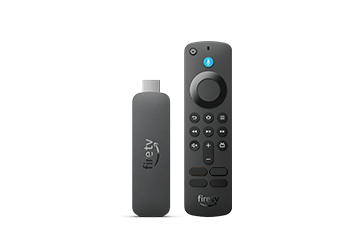
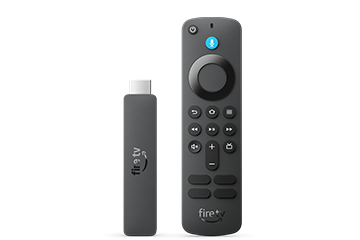
    Fire TV Vega OS compatibility check: Fire TV Stick HD (2026) with remote

    Fire TV Stick HD (2026). Product image source: Amazon Fire TV device specifications.

    Amazon Fire TV Stick 4K Select with its remote

    Fire TV Stick 4K Select (2025). Product image source: Amazon Fire TV device specifications.

    These source-hosted product images are embedded from Amazon’s public specification page; they have not been downloaded into this article’s media folder.

    How do I check my Fire TV model and OS?

    Check the model name and software version on the device before checking player support. If you are shopping, read the complete model name and generation on the listing. If you already own the stick, use its Settings and About or software-version screen.

    1. Open Settings on Fire TV.
    2. Look for My Fire TV, Device, or Device & Software. Menu names vary by model and software version.
    3. Open About or the device information page and find the software version.
    4. Write down the exact model name and year as well as the OS name/version shown.
    5. Compare both details with Amazon’s current model list. If your menu differs, use Amazon’s model-specific Fire TV help.

    Amazon’s Vega documentation uses My Fire TV > About for the software version. Fire OS documentation describes a different Settings path on some devices. Do not assume your stick changed systems because the home-screen design changed; verify the software-version details.

    How do I verify a compatible player before setup?

    Use the exact Fire TV model as the compatibility target, then look for explicit OS support from the player publisher. A listing for “Fire TV” or “Android” may leave the Vega question unanswered.

    1. Identify the model. Record its full name, generation, and year.
    2. Confirm its OS. Check the About/software-version screen and Amazon’s current table.
    3. Check Amazon’s app listing. Search the Amazon Appstore on the device or in your marketplace. Amazon help recommends checking the listing’s “Works With” details for the Fire TV model when that section is available.
    4. Read the player publisher’s support page. Look for the specific OS or model, not just a general claim such as “works with Fire TV.” App publishers may maintain separate versions for different systems.
    5. Check your country’s store listing. App availability can vary by country, as well as by device and operating system.
    6. Ask the publisher if the wording is unclear. Get confirmation for the exact model and OS before entering your IPTV access credentials.

    Amazon’s consumer help page advises readers to check the app detail page’s “Works With” section for model compatibility. IPTV-PREMIUM’s live setup index likewise says app availability changes by model, OS, and country. Neither an access key nor a player’s name can override an unsupported app build.

    If the app opens but stops at a loading screen, follow the separate Fire TV app troubleshooting checks. That guide covers an app that is already installed; this page covers the model and operating-system check before setup.

    What should I choose for my setup?

    Choose based on the player you need and its confirmed support, not on resolution or a shared Fire TV label. If the publisher has not named Vega OS or your exact model, treat compatibility as unconfirmed.

    Your situation Next step
    You already own a Fire TV Stick Check its full model and OS, then verify the player’s listing and publisher support before setup.
    You are comparing two Fire TV models Compare the full model names and OS entries in Amazon’s current table; do not compare only “HD” or “4K.”
    The player publisher names Fire OS but not Vega OS Ask the publisher whether the exact model is supported. Until then, do not assume support.
    The player is not listed in your device’s app store Check the publisher’s supported devices and your marketplace, or choose a device the publisher explicitly lists.

    For setup steps for the players IPTV-PREMIUM currently documents, start with the XCIPTV guide or another guide listed on the setup index. Confirm the current app version and device support before using the steps.

    Frequently asked questions

    Is Fire OS based on Android?

    Yes. Amazon describes Fire OS as a fork of Android. That shared foundation does not mean every Android app is supported: app-store availability and the app publisher’s device support still matter.

    Is Vega OS an Android update?

    No. Amazon documents Vega OS as a separate operating system with its own developer documentation. Check for explicit Vega support instead of assuming that an app built for Fire OS or Android will run on it.

    Does “Fire TV Stick 4K” tell me which OS I have?

    No. Amazon lists a 2026 Fire TV Stick 4K (3rd Gen) with Vega OS and a 2025 Fire TV Stick 4K Plus with Fire OS 8. Use the full model name, year, and generation to identify the software.

    How can I check whether a Fire TV app supports my model?

    Check Amazon’s app detail page for its “Works With” information when available, then read the player publisher’s support page for the exact model and OS. If the listing does not identify your device or Vega OS, ask the publisher before setup.

    Does Fire OS support guarantee Vega OS support?

    No. Amazon documents separate Fire OS and Vega OS app-development paths. A publisher may need to provide a compatible build for each system, so confirm support for the operating system shown on your device.

    Why does app availability vary by country?

    App stores can show different listings by marketplace, and publishers may limit where an app is offered. Check the store connected to your country and the publisher’s regional support information before relying on a listing.

    Conclusion

    For Fire TV Vega OS compatibility, the reliable sequence is: identify the exact stick, check its OS, and confirm the player’s support for that model and country. Similar names and 4K labels are not enough to prove an app will work.

    Use the device and compatible-player setup guides for the next setup step. Keep IPTV access credentials private; availability varies by app, device, operating system, and country.

    Sources and references

    About this guide

    Author: IPTV-PREMIUM. This is a research-based setup guide checked against Amazon’s current Fire TV documentation on October 13, 2026. No personal device test or compatibility result is claimed. IPTV-PREMIUM sells fixed-duration access keys for compatible third-party players; this guide does not confirm that any specific player works on every Fire TV model.

  • Fire TV App Won’t Load? 7 Clear Fixes

    Fire TV App Won’t Load? 7 Clear Fixes

    Fire TV App Won’t Load: 7 Checks That Usually Help

    TL;DR: If a Fire TV app won’t load, first check whether the problem affects one app or the whole device. Then test the network, restart Fire TV, force-stop the app if that option is available, clear its cache, install updates, and only then clear app data or reinstall it. Check your IPTV access credentials last, because changing them will not repair a device or app problem.

    Fire TV app won't load on a streaming stick beside a router
    Start with the device, app, and network before changing access details.

    Key takeaways

    • A single app failing points you toward the app, its stored data, or compatibility; several apps failing points more strongly toward Fire TV or the network.
    • Restarting the device and checking Network Status are the safest early checks.
    • Clear cache before clear data. Data clearing can remove saved app state and may require you to enter details again.
    • Fire TV menu labels vary: Amazon uses both “My Fire TV” and “Device & Software” in its help pages.
    • Availability varies. Playback depends on your internet connection, device, compatible player, and provider-side service.

    A Fire TV app won’t load for several different reasons: a temporary app fault, a full or unstable device, a Wi-Fi problem, an outdated app or system, or login details that do not match the player’s fields. The quickest fix is not always the most disruptive one.

    This guide gives you a seven-check path for a compatible player on Fire TV. It uses current Amazon support instructions, keeps private IPTV access credentials out of screenshots, and separates device problems from account or provider-side problems. No personal Fire TV test is claimed here.

    Fire TV app won’t load? Start with the symptom

    Start by checking the scope of the failure. If only one compatible player refuses to open while other apps work, begin with that app’s cache, data, update, and compatibility. If several apps fail or Fire TV feels slow, check the device and network first.

    What you see Most useful first check Why it matters
    One app crashes or stays on its loading screen Restart Fire TV, then force-stop or clear that app’s cache The problem may be limited to the app’s temporary state.
    Fire TV app won’t load after an update Check Network Status, restart Fire TV, and install system updates The device, storage, software, or Wi-Fi may be involved.
    The app opens, but the playlist or categories do not load Check the input method and the exact access details The app can be healthy while the login or playlist request is wrong.
    The app opens, but playback is blank Use the separate blank-screen checklist Loading and playback are different failure points.

    1. Restart Fire TV and check the network

    Restart Fire TV before changing account settings. If a Fire TV app won’t load, a restart clears a temporary stuck state and tells you whether the issue returns immediately. Amazon also provides a Network Status tool that can show the link between Fire TV and the router, the internet connection, and suggested next steps.

    1. Open Settings on Fire TV.
    2. Open Network and check whether the correct Wi-Fi network is connected.
    3. If the device shows a connection problem, open the network diagnostic option when it appears. On compatible models, the Network Status tool may also show connection details or a speed test.
    4. Restart Fire TV from its device menu. If the menu is not responding, unplug the power, wait, and reconnect it.
    5. Open another app and test it. Then reopen the affected compatible player.

    Amazon’s Wi-Fi guidance also recommends restarting the modem and router when the connection is unstable. If other devices in the home are offline too, the problem is more likely to be the network than one Fire TV app. A wired connection may be possible with compatible Fire TV hardware and an appropriate adapter.

    For the exact network sequence, see Amazon’s Fire TV Wi-Fi troubleshooting guide and its Network Status tool explanation, both checked October 11, 2026.

    2. Force-stop the app, then clear cache

    Clear temporary app data before resetting the app completely. After a restart, try this lower-risk step next. On Fire TV, open Settings > Applications > Manage Installed Applications, select the affected app, and use the available force-stop or clear-cache option. The exact labels can vary by Fire TV software version.

    1. Highlight the compatible player in the installed-app list.
    2. Choose Force Stop if the option is shown.
    3. Choose Clear Cache.
    4. Return to the home screen and open the app again.

    Cache is temporary data. Clearing it is a low-risk way to remove stale files that may be interfering with launch or playback. Amazon documents the same Applications path for clearing cache and data. The company separates the two actions, so do not select Clear Data by accident if you are only trying to remove temporary files.

    3. Update the app and Fire TV software

    Install available updates before assuming the access key or service is at fault. A Fire TV app won’t load reliably when its local version and the device software are out of step. An app can stop behaving correctly after a device update, or an older app can fail on a newer Fire TV software version. The first step is to check the app’s update status in the Amazon app area. Then check Fire TV itself.

    1. Open the app store or your installed-app list and check for an update for the affected player.
    2. Open Settings.
    3. Choose My Fire TV or Device & Software.
    4. Choose About, then Check for System Update.
    5. Install any available update, restart Fire TV, and test the app again.

    Amazon’s current software-update path uses those menu labels, although the wording depends on the model. The official Fire TV software update instructions were checked on October 11, 2026.

    4. Reinstall only after the simple checks

    Reinstall the app only after restart, network, cache, and update checks fail. When a Fire TV app won’t load after those checks, a clean installation can repair damaged local files. Amazon includes uninstalling and reinstalling in its current app troubleshooting path. Reinstallation can repair a damaged local installation, but it also means you must set up the compatible player again.

    1. Write down the app name and the exact input fields it shows before removing it.
    2. Make sure your private IPTV access credentials are available, but do not paste them into a public note or screenshot.
    3. Uninstall the affected app from Fire TV’s installed-app settings.
    4. Install the current version from the normal app source available on your device.
    5. Open the app, select the matching login method, and test with the supplied details.

    If you cannot install an app from the normal source, stop at that point and use the device maker’s support guidance or the app developer’s official help. This article does not provide instructions for bypassing platform controls or installing unknown software.

    5. Check the compatible-player details

    When the app opens but the playlist, categories, or login screen fails, compare the fields exactly. If a Fire TV app won’t load its list after opening, the input method may be the issue rather than the launch itself. A compatible player may ask for a playlist URL, or it may ask for separate server, username, and password fields. Use the method shown in the access details you received; do not convert or edit a long URL by guesswork.

    • Check that the server address is in the server field, not the password field.
    • Check for spaces copied before or after each value.
    • Check that the device date, time zone, and network are correct if the app reports an authentication or connection error.
    • Check whether the same access details work in another compatible player you already use. This is a diagnostic comparison, not a guarantee that every device or app supports the same method.
    • Keep the access key, playlist URL, username, and password private.

    When the app is healthy but the details still fail, the cause may be an account issue, a player-compatibility issue, or a provider-side response. Availability varies, and IPTV-PREMIUM does not promise that a particular channel, film, series, match, or event will be available on every device or player.

    For a setup-method refresher, use the M3U vs Xtream Codes explainer. It explains why the player’s input fields must match the access details you received.

    6. Avoid the common wrong turns

    Do not jump straight to a factory reset or change several settings at once. Changing multiple variables hides the useful clue. A reset can erase local settings and force you to rebuild the device. It also makes it harder to know what actually solved the problem.

    • Do not clear data first: try a restart and cache clearing before resetting the app’s stored state.
    • Do not keep retrying a wrong login: copy the field labels and compare them with the details supplied for your access key.
    • Do not post credentials in a support forum: crop screenshots or cover every private value.
    • Do not blame the Fire TV immediately: test another app and the network before deciding which layer failed.
    • Do not treat a successful app launch as proof of playback: loading, authentication, guide data, and video playback are separate checks.
    • Do not use unofficial workarounds for a normal app error: use the device maker’s help, the player’s official support, or your provider’s support route.

    7. Know when to contact support

    Contact support after the device and app checks pass but the same access details still fail. If a Fire TV app won’t load after the basic checks, send useful diagnostic information without sending your private password or full playlist URL.

    Include:

    • Fire TV model or Fire TV Stick generation, if known.
    • Compatible-player name and version, if shown.
    • The exact error message, copied word for word.
    • Whether other apps open normally.
    • Whether the Fire TV Network Status check reports a connection problem.
    • Whether the issue affects the whole app or only one category or stream.
    • The login method you selected, without the private values.

    This short record helps support separate a device problem, an app problem, an access-detail problem, and a provider-side problem. If the app opens but the video remains blank, use the blank-screen troubleshooting guide instead of repeating the app-install steps. If the problem remains after the checks above, use the support contact page without including private credentials.

    What this guide can and cannot tell you

    This is a research-based guide built from current Amazon Fire TV help pages and manufacturer troubleshooting guidance checked on October 11, 2026. It does not claim a personal device test, a guaranteed fix, or a diagnosis for a specific account.

    The menu labels can change with the Fire TV model and software version. The same symptom can also have different causes: a local cache problem, weak Wi-Fi, an app update, a mismatched login method, or a provider-side response. Use the checks in order and record what changes after each one.

    Frequently asked questions

    Why won’t my Fire TV app open?

    Start with a restart when the app won’t load, then confirm that the network is connected, force-stop the app if that option exists, and clear its cache. If several apps fail, investigate the device or Wi-Fi before reinstalling one app. If only one app fails, check its update and compatibility after the basic restart.

    How do I clear an app cache on Fire TV?

    Open Settings, choose Applications, choose Manage Installed Applications, select the affected app, and choose Clear Cache. Fire TV may use slightly different menu wording on different models. Clear cache removes temporary app files. Clear Data is a separate action that resets the app and may require you to enter your setup details again.

    Should I clear app data or only the cache?

    Start with cache. Use Clear Data only when the app still fails after a restart, network check, cache clear, and update check. Data clearing resets the app’s local state, so saved preferences or login information may disappear. Keep the original setup details private and ready before using it.

    How do I update Fire TV software?

    Open Settings, select My Fire TV or Device & Software, select About, and then choose Check for System Update. Install the available update, restart the device if requested, and test the app again. Amazon uses both menu labels in its support documentation, so the wording on your Fire TV may not match exactly.

    Why does the app open but the IPTV list does not load?

    When the IPTV list does not load after opening, that symptom points beyond the app launch itself. Check the network, then compare the player’s input fields with the supplied access details. A playlist URL belongs in a playlist field; a three-field login belongs in matching server, username, and password fields. If the details still fail, contact support without sharing your private credentials.

    Will reinstalling the app fix buffering?

    Not necessarily. Reinstallation can repair a damaged local app installation, but buffering can also depend on Wi-Fi, the Fire TV device, the compatible player, the stream response, or availability. Reinstall only after the lower-risk checks. If the app opens and video is blank or stops during playback, use a playback-specific troubleshooting sequence.

    Conclusion

    When a Fire TV app won’t load, work from the outside in: check the symptom, network, device restart, app cache, updates, reinstall, and finally the access details. That order protects your settings and gives you better information if support is needed.

    For the next setup step, use the device and compatible-player setup guide. Keep your access key private, and remember that playback depends on your internet connection, device, player, and provider-side service.

    Sources and references


  • M3U vs Xtream Codes: What’s the Difference?

    M3U vs Xtream Codes: What’s the Difference?

    M3U vs Xtream Codes: What’s the Difference?

    TL;DR: M3U is a playlist URL or file that a compatible player reads. Xtream Codes is usually a three-field login: server URL, username, and password. Choose the option your player supports and your access details provide. The format can change organisation and setup, but it does not guarantee better playback.

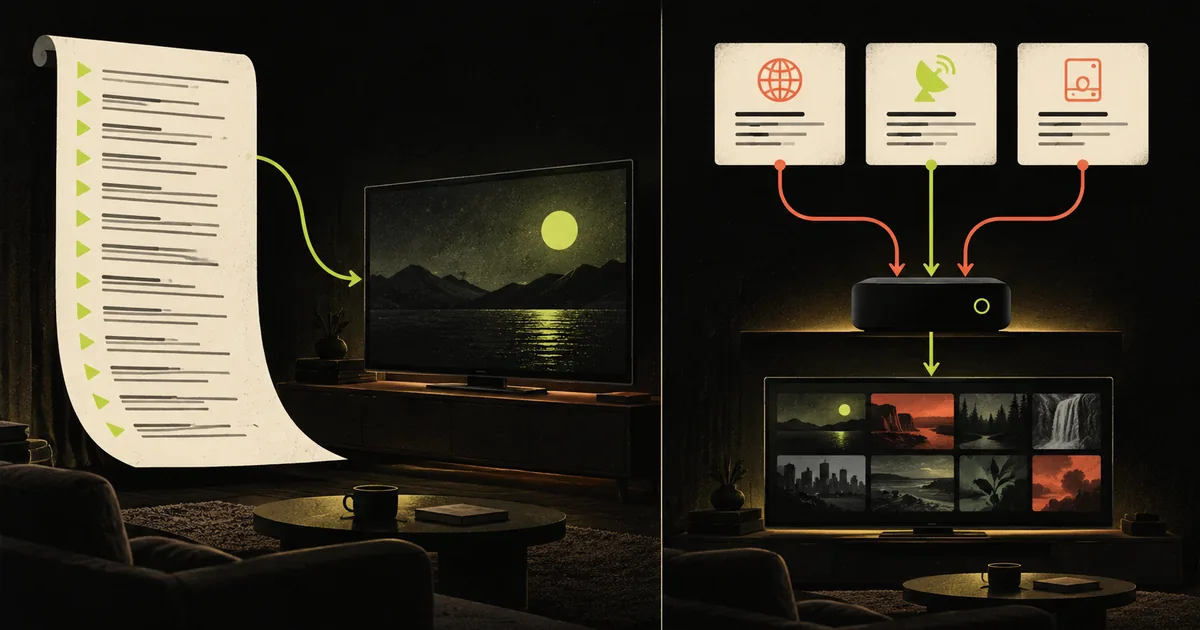
    M3U vs Xtream Codes editorial illustration comparing two player setup methods
    Two ways to give a compatible player the information it needs.

    Key takeaways

    • M3U is a playlist format; Xtream Codes is a login method commonly shown by IPTV players.
    • Use Xtream Codes when your player offers that option and your access details include three separate fields.
    • Use M3U when the player asks for a playlist URL or does not support the other login method.
    • EPG, movies, series, categories, and account information depend on what the provider and player support.
    • Keep both a long M3U URL and Xtream login fields private.

    If an IPTV player gives you two setup choices, the labels can feel more complicated than the decision. The useful question is not “Which format is the fastest?” It is “Which input method matches this compatible player and the IPTV access credentials I received?”

    This M3U vs Xtream Codes guide explains the difference, the limits of each method, and the safest way to choose. IPTV-PREMIUM sells fixed-duration access keys for compatible third-party players; this article is a research-based explainer, not a claim about a specific channel, film, series, or event. Availability varies.

    M3U vs Xtream Codes: the short answer

    M3U is a playlist. It gives the player a list of stream addresses and related labels. Xtream Codes is usually a structured login. You enter a server URL, username, and password so the player can request information from the provider-side service.

    If the player supports both, Xtream Codes may provide a tidier way to load categories or guide data when those features are supplied. If the player only accepts M3U, the playlist is the correct choice. Neither method removes the need for a stable internet connection, a compatible device, a supported player, and current access details.

    What is an M3U playlist?

    An M3U playlist is a text-based list that a media player can read. In an IPTV setup, it commonly arrives as one long URL. The player downloads or reads the list, then uses the entries to build a channel menu.

    An entry can contain a display name, a group, an identifier, a logo reference, and a stream address. The exact fields vary. Official Kodi documentation describes M3U as a live-TV source and XMLTV as a separate format for programme-guide data in its IPTV Simple Client. You can see that distinction in the Kodi IPTV Simple Client documentation.

    Do not assume that every M3U URL contains the same features. Some are simple lists; some are generated by a provider system; some include guide-related metadata. The compatible player still decides which fields it can use.

    What is an Xtream Codes login?

    In many compatible players, “Xtream Codes” or “Xtream Codes API” labels a login form with three fields:

    • Server URL: the address of the service endpoint.
    • Username: the account identifier supplied with the access details.
    • Password: the private value paired with that username.

    The player can then request the sections that the provider exposes and the player supports. Those sections may include live categories, a programme guide, movies, or series, but none is guaranteed by the label alone.

    A long M3U link sometimes contains values that look like these fields. That does not mean every playlist can be converted into a working Xtream login. Do not guess, edit, or publish credentials. If the setup screen and the supplied details do not match, use the device instructions or ask support.

    M3U vs Xtream Codes compared

    The table below compares the setup experience, not the quality of the underlying service. Provider-side availability, the device, the player, and the connection remain the deciding factors for playback.

    Point M3U Xtream Codes
    What you enter One playlist URL or file Server URL, username, and password
    What the player reads A list of entries and stream addresses Information requested through the supported login connection
    Channel organisation Depends on playlist metadata and player support May use server-side categories when supplied and supported
    EPG / TV guide May need a separate XMLTV source or mapping May be returned through the supported service connection
    Movies and series May appear as playlist entries, depending on the source and player May appear in structured sections, depending on the source and player
    Portability Useful when a player accepts playlist URLs Useful when a player provides an Xtream/API login form
    Playback quality Not determined by the label alone; it depends on the provider, connection, device, and player

    Which option should you choose?

    Choose by matching the credentials to the fields on the player screen:

    1. The player asks for server URL, username, and password: use the Xtream Codes or API option if those are the details you received.
    2. The player asks for an M3U URL or playlist file: use the M3U option and enter the supplied playlist address.
    3. The player offers both: use Xtream Codes when the three fields are supplied and the player supports them; keep M3U as a separate supported option, not as a forced conversion.
    4. The player offers neither: check whether the app is compatible with your device, then use the IPTV-PREMIUM setup guide or contact support with the device, app name, and field labels.

    The right choice is the one that the player can accept and the access details can support. A longer URL is not automatically worse, and three fields are not automatically better.

    What changes—and what does not?

    The main difference is how the player receives and organises information. Xtream Codes can let a supported player request sections separately. M3U gives the player a playlist to parse. That can change the menu structure, guide setup, refresh behaviour, or how movies and series are grouped.

    The format does not automatically change the bitrate, server capacity, device performance, or Wi-Fi conditions. If playback buffers, changing from M3U to Xtream Codes may help only when the original issue was a setup or player-compatibility problem. It is not a universal playback fix.

    For a blank screen or empty menu, compare the exact fields first, then create a fresh profile and restart the player. The existing blank-screen troubleshooting guide covers that sequence in more detail.

    Common mistakes to avoid

    • Putting three fields into one box: a server URL, username, and password belong in their matching fields.
    • Using the wrong login type: an M3U URL belongs in a playlist field; it is not automatically a password.
    • Sharing the long URL: an M3U link can contain private access information. Treat it like an access key.
    • Posting a screenshot with credentials visible: crop or cover private values before asking a public community for help.
    • Assuming `.m3u8` means a full IPTV list: HLS also uses `.m3u8` playlists to index one stream or a group of stream variants. The extension alone does not describe the whole service.
    • Changing several settings at once: test the login method, then the connection, then the player. One change at a time makes the cause easier to identify.

    For technical context, the RFC 8216 specification describes HLS playlist files derived from M3U and explains the role of playlist tags and media references. Apple’s HTTP Live Streaming documentation also shows how M3U8 files can index media playlists and segments. Those standards explain playlist mechanics; they do not guarantee what a particular provider or player exposes.

    Frequently asked questions

    What is the difference between M3U and Xtream Codes?

    M3U is a playlist URL or file that a compatible player reads. Xtream Codes is usually a three-field login using a server URL, username, and password. M3U focuses on delivering a list; Xtream Codes can let a supported player request more structured information. The available sections depend on the provider and player.

    Which is better, M3U or Xtream Codes?

    Neither is universally better. Use Xtream Codes when your compatible player supports that login and your access details include the three required fields. Use M3U when the player asks for a playlist URL or does not support Xtream Codes. The choice does not guarantee a faster or more stable stream.

    Does an M3U playlist include the TV guide?

    It may include metadata used to map a guide, but the player may need a separate XMLTV source or an additional setting. Kodi’s official IPTV Simple Client documentation treats M3U as the live-TV source and XMLTV as the EPG source. Other players may handle the same information differently.

    Is M3U the same as M3U8?

    They are related playlist names, but the context matters. M3U8 is commonly used for UTF-8 HLS playlists, and a single `.m3u8` address may point to one stream’s media playlist or a master playlist. An IPTV M3U URL can instead be a larger list of entries. Do not identify the whole setup from the extension alone.

    Can I use M3U and Xtream Codes with the same access key?

    Only when the provider supplies or supports both methods for that account and the player accepts them. Do not extract or alter credentials based on a guessed URL pattern. Use the method shown in your setup details, or ask support which method is compatible with your device and player.

    Will changing from M3U to Xtream Codes stop buffering?

    Not by itself. Buffering can come from the internet connection, Wi-Fi, device, player, server response, stream availability, or the selected quality. Changing the format is worth testing when the player is using the wrong input method, but it is not a general performance upgrade.

    Conclusion

    The simplest M3U vs Xtream Codes rule is to match the format to the player’s input fields. Use the three-field Xtream Codes method when it is supported and supplied. Use M3U when the player expects a playlist URL or file. Keep both methods private, and do not treat either label as a promise about speed, catalog, or availability.

    If you need the next setup step, follow the device and compatible-player setup guide. If the fields match but the player remains empty, record the device, app, login method, and exact message before contacting support.

    Sources and references