Category: Setup & Guides

Device setup, app compatibility, and compatible-player guides.

  • Apple TV 4K (2026): Key Changes and Release Date

    Apple TV 4K (2026): Key Changes and Release Date

    Last updated: October 16, 2026

    Apple TV 4K 2026 Release Date: Key Changes

    TL;DR: Apple announced the new Apple TV 4K on October 13, 2026. Preorders opened that day, and Apple says it will be available in stores from November 13. The U.S. price is $299. The announced updates include an A19 chip, an AV1 decoder, Siri microphones that work without holding the remote, remote finding, and a HomePod-based four-speaker surround setup.

    Key takeaways

    • Announcement and preorders began October 13, 2026; store availability begins November 13.
    • Apple lists a U.S. price of $299; other market prices may differ.
    • The new device adds the A19 chip, AV1 decoding, three far-field microphones, and Find My support for its remote.
    • Four-speaker surround uses HomePod mini 2 or HomePod 2 speakers.
    • Siri AI beta is also planned for Apple TV 4K (2nd generation) or later, subject to language and region limits.

    The Apple TV 4K 2026 release date is November 13, 2026. Apple announced the device on October 13, with preorders opening the same day. Its stated price is $299 in the United States; prices outside the U.S. can differ.

    This article summarizes Apple’s announcement as of October 16, 2026 and cross-checks the launch details against independent technology coverage. It covers what Apple has confirmed, including the release date, and what buyers should verify before choosing a streaming device.

    Apple TV 4K 2026 release date and price

    Detail Apple’s announcement
    Announced October 13, 2026
    Preorders Started October 13, 2026
    In-store availability November 13, 2026
    U.S. price $299

    Apple’s announcement is the primary source for the dates and U.S. price. Reports from TechCrunch and TechRadar also identify November 13 as the in-store date. The date is not a promise that every retailer or country will have stock on the same day; check Apple’s local store page for regional ordering and availability.

    What changed in the 2026 model?

    The headline changes are a new A19 chip, AV1 video decoding, voice pickup without holding the remote, and new remote-finding and speaker features. Apple announced these items on October 13; they should be understood as announced specifications, not independent performance-test results.
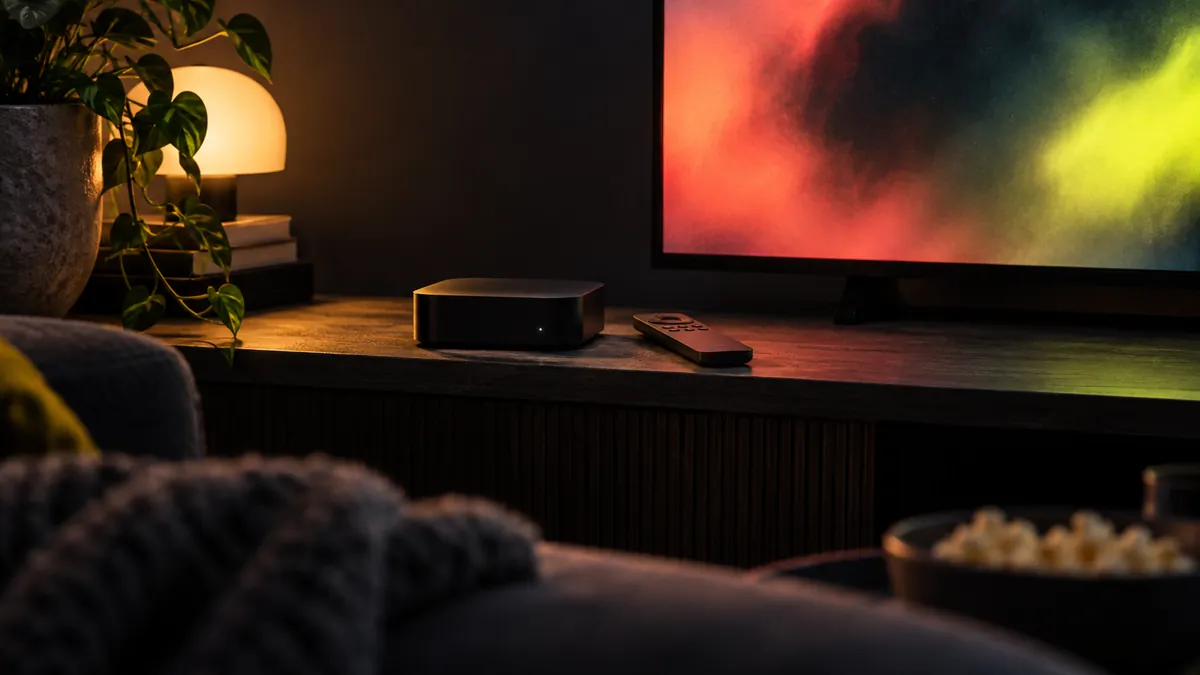
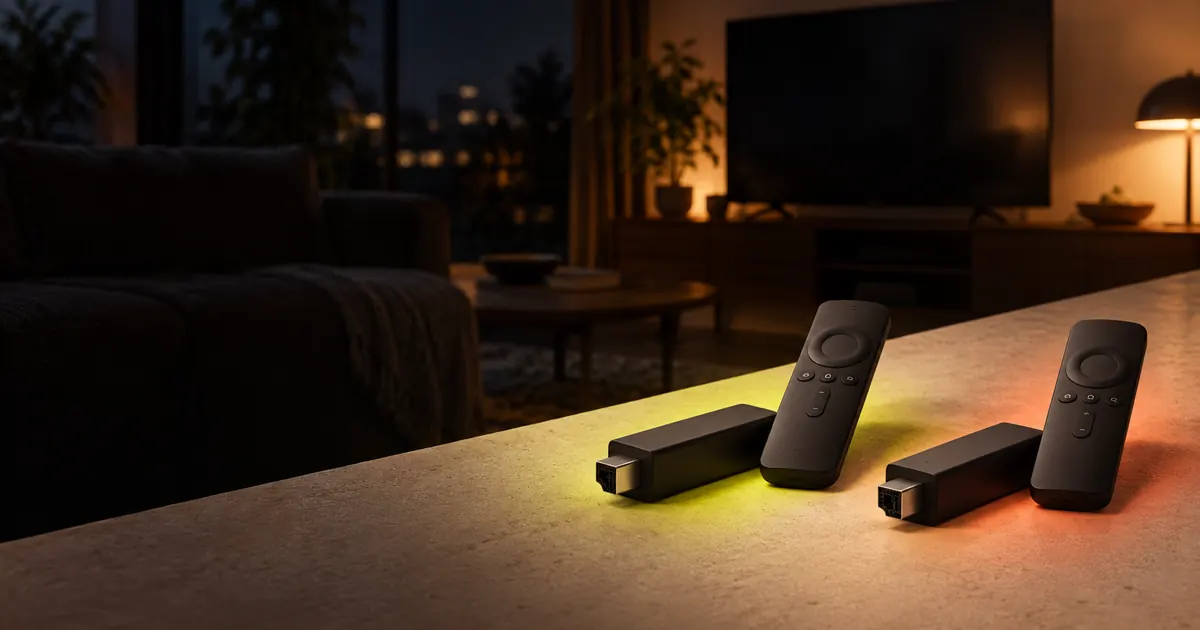
    Apple TV 4K 2026 release date guide illustration: generic box, remote, and TV
    Editorial illustration of a streaming-device setup; not an Apple product photograph.
    • A19 chip: Apple says it brings up to 50% more CPU performance and up to twice the GPU performance compared with the previous generation. These are Apple’s comparisons.
    • AV1 decoder: A dedicated decoder is included. Its practical effect depends on the video app and content using the format.
    • Three far-field microphones: Apple says users can speak to Siri without picking up the remote.
    • Find My for Siri Remote: The remote can play a sound and supports Precision Finding through compatible Apple devices, according to Apple.
    • HomePod surround: Apple describes a four-speaker arrangement using HomePod mini 2 or HomePod 2 speakers for a surround setup.
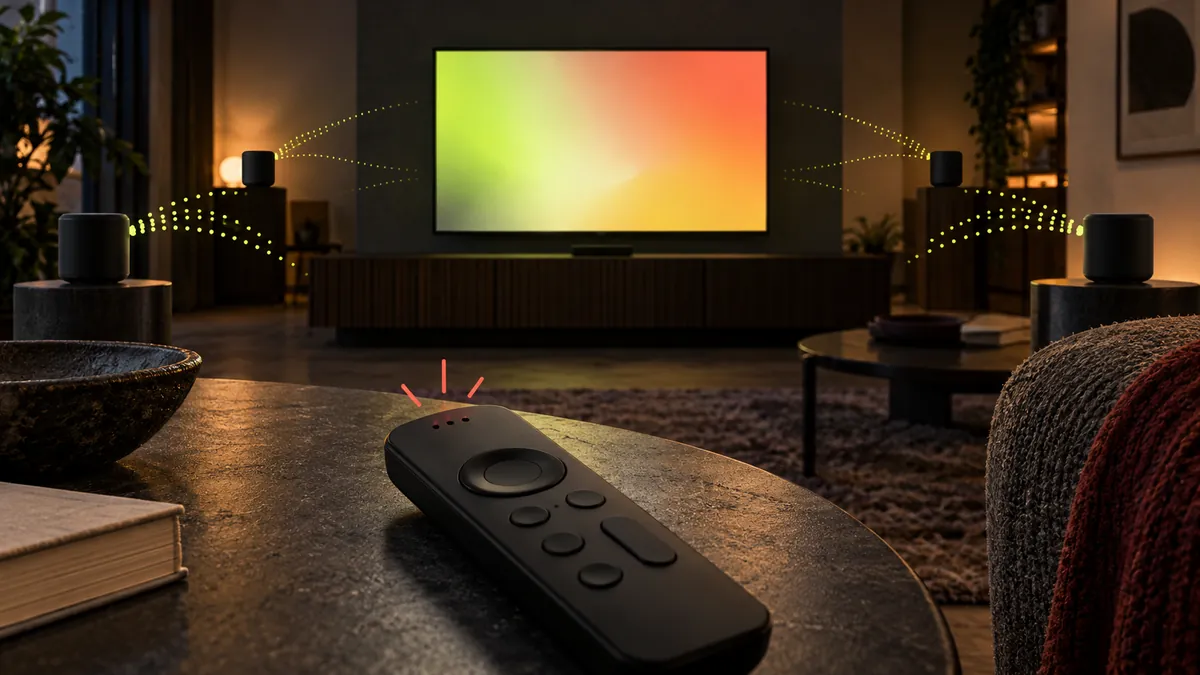
    Editorial illustration showing a remote and four speakers around a television
    Illustration of the announced four-speaker concept; speaker placement and setup requirements depend on Apple’s instructions.

    Apple’s product announcement and the independent reports linked below describe the same main changes. For setup, speaker placement, software requirements, and supported devices, follow Apple’s current instructions for the specific hardware you own.

    Which Apple TV models get Siri AI?

    Apple says Siri AI beta is available on Apple TV 4K (2nd generation) or later, so the feature is not exclusive to the 2026 model. Apple lists language and regional limits for launch and describes it as a beta. Check the current software release and Apple’s regional availability notes before buying a device solely for this feature.

    That distinction matters if you already own a recent Apple TV 4K. The new model adds hardware changes, but Apple’s announcement also extends the Siri AI beta to older supported hardware. Availability may change as Apple updates the feature.

    What should buyers check?

    1. Confirm the date and price for your own country; $299 is Apple’s U.S. price.
    2. Check whether your TV, HDMI setup, network, and audio equipment meet Apple’s current requirements.
    3. If you want the HomePod surround feature, verify the exact HomePod models and configuration Apple supports.
    4. If Siri AI matters to you, check whether it is available for your language, region, and current Apple TV model.
    5. Check the app store and app publisher for any app you plan to use; device support and content availability vary by app and region.

    Apple’s product features do not guarantee that a particular third-party player or content service is available in every country. Do not rely on a device’s brand alone to confirm app support.

    Frequently asked questions

    When does the Apple TV 4K (2026) come out?

    Apple says store availability starts November 13, 2026. Preorders began October 13, the announcement date.

    How much does the 2026 Apple TV 4K cost?

    Apple announced a U.S. price of $299. Prices in other countries may differ.

    What is new in the 2026 Apple TV 4K?

    Apple lists an A19 chip, dedicated AV1 decoder, three far-field microphones, Find My support for Siri Remote, and a HomePod-based four-speaker surround arrangement.

    Is Siri AI exclusive to the new Apple TV?

    No. Apple says the Siri AI beta is also available on Apple TV 4K (2nd generation) or later. Language and regional availability apply.

    Does Apple TV 4K guarantee that every streaming app works?

    No. App availability and device support depend on each app publisher, software version, and region. Check the app’s current listing and support page.

    Can I use four HomePods for surround sound?

    Apple describes the feature with HomePod mini 2 or HomePod 2 speakers. Check Apple’s current setup instructions for supported combinations before purchasing speakers.

    Conclusion

    The Apple TV 4K 2026 was announced on October 13, and Apple lists November 13, 2026 as its in-store availability date. Its $299 price is for the U.S.; the main announced changes are the A19 chip, AV1 decoding, voice microphones, remote finding, and HomePod surround support. Check local pricing and app compatibility before choosing a device.

    For compatible-player setup checks, use the device setup guides. App availability varies by device, software version, and region.

    Sources and references

    About this article

    IPTV-PREMIUM does not use a personal author byline. This product-news explainer is based on Apple’s announcement and independent reporting checked on October 16, 2026. No personal hands-on test is claimed. Prices, software features, and availability can vary by market and may change.
  • My SIPTV: What the Name Means and How to Check Support

    My SIPTV: What the Name Means and How to Check Support

    Last updated: October 16, 2026

    My SIPTV: What the Name Means and How to Check Support

    TL;DR: “My SIPTV” is ambiguous. Smart IPTV’s official site calls its product Smart IPTV and lists a “My List” feature, but the phrase may also refer to a third-party portal. Check the exact domain, app publisher, device model, operating system, and official store listing before using it. Do not assume a Fire TV or Android listing confirms Vega OS support.

    Key takeaways

    • The official product name on siptv.app is Smart IPTV; “My List” is a listed feature.
    • “My SIPTV” alone does not identify which site or app a search result means.
    • Smart IPTV is a player; it does not itself provide channels or a content catalogue.
    • Verify app publisher, domain, device model, OS, and country availability before setup.
    • This is a research-based guide; no hands-on compatibility test is claimed.

    If you searched for My SIPTV, you may be looking for Smart IPTV’s app, its “My List” feature, or a separate website using similar wording. The official Smart IPTV site uses the product name Smart IPTV and lists “My List” in its navigation; the phrase “My SIPTV” by itself does not confirm that a particular portal is official.

    Start from the official product website and the app store on your device. Check the publisher and supported operating system before entering IPTV access credentials.

    What does “My SIPTV” mean?

    There is no single meaning that can safely be inferred from those two words alone. The official site reviewed for this guide brands the app as Smart IPTV and presents a “My List” feature. A search result or message saying “My SIPTV” could instead be a provider’s customer page, a saved-list page, or an unrelated site.

    Before signing in, compare the full web address with the address linked from the official Smart IPTV website. A similar spelling, search advertisement, or logo is not proof that a page is connected to the app publisher. Do not share your password, playlist URL, or IPTV access credentials with a page you cannot verify.

    What is Smart IPTV?

    Smart IPTV is a media-player app, not a channel provider. Its official site describes the product as a player and has separate instructions and list-management tools. The app’s presence does not tell you which channels or programmes are available; that depends on the content source and the applicable rights and service terms.

    Illustration for a My SIPTV guide: television, remote, and player-check device
    Illustration: identifying a media-player setup; this is not a Smart IPTV screenshot.

    The official site’s platform information names several device families, but its available statements do not establish support for every model or operating-system version. In particular, a general “Fire TV” mention or an Android-based app listing should not be treated as confirmation for a Fire TV device running Vega OS.

    How do I check that I have the right app or site?

    1. Start at the publisher’s official site. Type or follow the address siptv.app and use its own navigation for app instructions or “My List.”
    2. Check the complete domain. Watch for extra words, misspellings, unusual subdomains, or redirects. If the official site does not link to the page you found, treat the relationship as unverified.
    3. Check the app-store publisher. Match the publisher name and official support link shown on your TV’s app listing to information on the official site.
    4. Read the current instructions. App menus and list-management steps can change by app version and device.
    5. Keep credentials private. Never post a playlist URL, password, or access key in a public comment or send it to an unverified site.

    These checks help identify the app or portal; they do not guarantee that a third-party page is safe or that a particular service account will work in the app.

    How do I check device compatibility?

    Match the exact device and operating system to the current app listing and publisher documentation. A device-family label alone can hide important differences between models.

    Illustration of a person checking a media-player listing and device details
    Illustration: compare the app listing with the TV model and software details.
    1. Find the TV or streaming device’s complete model name and generation.
    2. Open its system information screen and note the operating system and version.
    3. Search the official app store on that device. Confirm the listing’s publisher, supported devices, and regional availability.
    4. Check the app publisher’s current support page for the same model and OS.
    5. If the wording is broad or unclear, ask the publisher to confirm the exact combination before setup.

    Amazon documents Fire OS and Vega OS as separate app-development targets. Smart IPTV’s public Fire TV references do not, by themselves, confirm Vega OS compatibility. For the background on those operating systems, see our guide to checking Fire TV Vega OS compatible apps. App availability varies by device, OS, app version, and country.

    Common mistakes and safe next steps

    • Assuming “My SIPTV” is a verified website: confirm the full domain from the official product site.
    • Assuming a player supplies channels: verify what the app does and what your separate content provider supplies.
    • Assuming Android means Vega: check the app listing for the exact OS and model.
    • Using a setup guide for a different app version: follow the current instructions from the publisher.
    • Sharing a playlist or login while asking for help: remove credentials and private URLs from screenshots and messages.

    If your issue is with how a playlist format works, our explainer on M3U vs Xtream Codes covers the difference. For a blank display after an app opens, use the checks in IPTV player blank-screen troubleshooting.

    Frequently asked questions

    Is “My SIPTV” the official name of an app?

    The reviewed official website uses the name Smart IPTV and lists “My List” as a feature. “My SIPTV” alone is ambiguous, so verify the exact app or page before using it.

    Is Smart IPTV the same as a TV service?

    No. Smart IPTV is described by its publisher as a media player. It does not itself tell you which channels or programmes a separate content source provides.

    Where should I find Smart IPTV instructions?

    Start from the official Smart IPTV site and follow its current instructions and list links. Check the address before entering account details.

    Does a Smart IPTV Fire TV listing confirm Vega OS support?

    No. A general Fire TV or Android reference does not establish support for a Vega OS model. Check the exact device listing and ask the app publisher if Vega is not named.

    Does Smart IPTV include channels?

    The official site presents it as a media player, not as a channel catalogue. Any content source is separate, and availability depends on that source.

    Can I safely send my playlist link to someone for help?

    Treat playlist links and login details as private credentials. Redact them from screenshots and use the app publisher’s verified support route.

    Conclusion

    “My SIPTV” may refer to Smart IPTV’s “My List” feature or to a separate page. Confirm the domain and publisher, then check the exact device and operating system against the current app listing. For practical compatible-player setup steps, start with the IPTV-PREMIUM setup guides.

    Sources and references

    About this guide

    IPTV-PREMIUM does not use a personal author byline. This research-based guide was prepared from the official product and platform documentation checked on October 16, 2026. No personal device test or app compatibility result is claimed.

  • Fire TV Vega OS Compatibility: Check Player Support First

    Fire TV Vega OS Compatibility: Check Player Support First

    Last updated: October 13, 2026

    Fire TV Vega OS Compatibility: Check Player Support First

    TL;DR: Fire TV Vega OS compatibility depends on the exact player build, not just the Fire TV name or the “4K” label. Identify your full model and software version, then check the app’s Amazon listing and its publisher’s current support page for that OS and model. Fire OS support does not prove Vega OS support.

    Key takeaways

    • Fire OS is based on Android; Vega OS is a separate app-development target.
    • Some similar Fire TV Stick names use different operating systems.
    • Confirm support for the exact model, OS, and country before setup.
    • Check the official app listing and the player publisher’s own compatibility notes.
    • This is a research-based guide; no hands-on device test is claimed.

    Fire TV Vega OS compatibility is the first detail to check when you are choosing a Fire TV Stick for a particular player. Amazon now lists Fire TV devices running both Fire OS and Vega OS, and a shared “Fire TV” label does not mean every app supports both systems.

    The safest check is simple: match the full device model to its operating system, then confirm the player publisher supports that exact combination. IPTV-PREMIUM’s setup guides also note that app availability varies by model, operating system, and country.

    Fire TV Vega OS compatibility starts with the OS difference

    Fire OS and Vega OS are separate operating systems, so app support for one does not guarantee support for the other. Amazon describes Fire OS as a fork of Android. It presents Vega OS through a separate developer path and SDK, which means an app publisher may need to provide a Vega-compatible version.

    This difference matters even when two sticks look alike or both support 4K video. Video resolution describes the picture output; it does not tell you which operating system the device runs or which player apps are available.

    What you see What it tells you What it does not confirm
    Fire OS Amazon’s Android-based Fire TV platform That every Android app or every player is supported
    Vega OS A separate Amazon operating system with its own app-development support That a Fire OS or Android build also works on Vega
    “Fire TV” or “4K” in a product name The device family or a video capability The exact generation, OS, app catalogue, or country availability

    Amazon’s developer pages document Fire OS and Vega OS separately. For a reader, that means the app publisher’s current compatibility statement is more useful than an old setup video or a device name on its own. See Amazon’s Fire OS overview and its Appstore operating-system documentation.

    Which Fire TV Stick models use each OS?

    Amazon’s model list shows Vega OS on several newer sticks and Fire OS on other recent models. The table below reflects Amazon’s developer documentation checked on October 13, 2026. Check the full generation and year; “4K” appears in more than one model name.

    Full model name Amazon-listed operating system Why the name needs care
    Fire TV Stick 4K (3rd Gen, 2026) Vega OS 2.0 The 2026 “4K” model is not the 2023 4K (2nd Gen).
    Fire TV Stick HD (2026) Vega OS 1.1 Check the year and generation; earlier HD sticks use other software.
    Fire TV Stick 4K Select (2025) Vega OS 1.1 “Select” is part of the model name.
    Fire TV Stick 4K Plus (2025) Fire OS 8 “Plus” identifies a different model from “Select.”
    Fire TV Stick 4K Max (2nd Gen, 2023) Fire OS 8 Use the generation in Amazon’s model list, not just “4K Max.”

    Amazon’s current Fire TV device specifications and OS model table are the references for these entries. The available models and names can differ by marketplace.

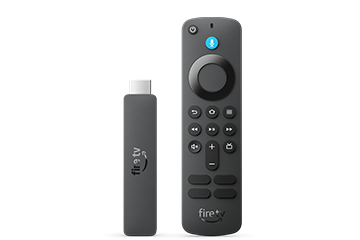
    Fire TV Vega OS compatibility check: Fire TV Stick HD (2026) with remote

    Fire TV Stick HD (2026). Product image source: Amazon Fire TV device specifications.

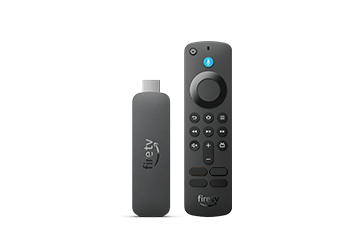
    Amazon Fire TV Stick 4K Select with its remote

    Fire TV Stick 4K Select (2025). Product image source: Amazon Fire TV device specifications.

    These source-hosted product images are embedded from Amazon’s public specification page; they have not been downloaded into this article’s media folder.

    How do I check my Fire TV model and OS?

    Check the model name and software version on the device before checking player support. If you are shopping, read the complete model name and generation on the listing. If you already own the stick, use its Settings and About or software-version screen.

    1. Open Settings on Fire TV.
    2. Look for My Fire TV, Device, or Device & Software. Menu names vary by model and software version.
    3. Open About or the device information page and find the software version.
    4. Write down the exact model name and year as well as the OS name/version shown.
    5. Compare both details with Amazon’s current model list. If your menu differs, use Amazon’s model-specific Fire TV help.

    Amazon’s Vega documentation uses My Fire TV > About for the software version. Fire OS documentation describes a different Settings path on some devices. Do not assume your stick changed systems because the home-screen design changed; verify the software-version details.

    How do I verify a compatible player before setup?

    Use the exact Fire TV model as the compatibility target, then look for explicit OS support from the player publisher. A listing for “Fire TV” or “Android” may leave the Vega question unanswered.

    1. Identify the model. Record its full name, generation, and year.
    2. Confirm its OS. Check the About/software-version screen and Amazon’s current table.
    3. Check Amazon’s app listing. Search the Amazon Appstore on the device or in your marketplace. Amazon help recommends checking the listing’s “Works With” details for the Fire TV model when that section is available.
    4. Read the player publisher’s support page. Look for the specific OS or model, not just a general claim such as “works with Fire TV.” App publishers may maintain separate versions for different systems.
    5. Check your country’s store listing. App availability can vary by country, as well as by device and operating system.
    6. Ask the publisher if the wording is unclear. Get confirmation for the exact model and OS before entering your IPTV access credentials.

    Amazon’s consumer help page advises readers to check the app detail page’s “Works With” section for model compatibility. IPTV-PREMIUM’s live setup index likewise says app availability changes by model, OS, and country. Neither an access key nor a player’s name can override an unsupported app build.

    If the app opens but stops at a loading screen, follow the separate Fire TV app troubleshooting checks. That guide covers an app that is already installed; this page covers the model and operating-system check before setup.

    What should I choose for my setup?

    Choose based on the player you need and its confirmed support, not on resolution or a shared Fire TV label. If the publisher has not named Vega OS or your exact model, treat compatibility as unconfirmed.

    Your situation Next step
    You already own a Fire TV Stick Check its full model and OS, then verify the player’s listing and publisher support before setup.
    You are comparing two Fire TV models Compare the full model names and OS entries in Amazon’s current table; do not compare only “HD” or “4K.”
    The player publisher names Fire OS but not Vega OS Ask the publisher whether the exact model is supported. Until then, do not assume support.
    The player is not listed in your device’s app store Check the publisher’s supported devices and your marketplace, or choose a device the publisher explicitly lists.

    For setup steps for the players IPTV-PREMIUM currently documents, start with the XCIPTV guide or another guide listed on the setup index. Confirm the current app version and device support before using the steps.

    Frequently asked questions

    Is Fire OS based on Android?

    Yes. Amazon describes Fire OS as a fork of Android. That shared foundation does not mean every Android app is supported: app-store availability and the app publisher’s device support still matter.

    Is Vega OS an Android update?

    No. Amazon documents Vega OS as a separate operating system with its own developer documentation. Check for explicit Vega support instead of assuming that an app built for Fire OS or Android will run on it.

    Does “Fire TV Stick 4K” tell me which OS I have?

    No. Amazon lists a 2026 Fire TV Stick 4K (3rd Gen) with Vega OS and a 2025 Fire TV Stick 4K Plus with Fire OS 8. Use the full model name, year, and generation to identify the software.

    How can I check whether a Fire TV app supports my model?

    Check Amazon’s app detail page for its “Works With” information when available, then read the player publisher’s support page for the exact model and OS. If the listing does not identify your device or Vega OS, ask the publisher before setup.

    Does Fire OS support guarantee Vega OS support?

    No. Amazon documents separate Fire OS and Vega OS app-development paths. A publisher may need to provide a compatible build for each system, so confirm support for the operating system shown on your device.

    Why does app availability vary by country?

    App stores can show different listings by marketplace, and publishers may limit where an app is offered. Check the store connected to your country and the publisher’s regional support information before relying on a listing.

    Conclusion

    For Fire TV Vega OS compatibility, the reliable sequence is: identify the exact stick, check its OS, and confirm the player’s support for that model and country. Similar names and 4K labels are not enough to prove an app will work.

    Use the device and compatible-player setup guides for the next setup step. Keep IPTV access credentials private; availability varies by app, device, operating system, and country.

    Sources and references

    About this guide

    Author: IPTV-PREMIUM. This is a research-based setup guide checked against Amazon’s current Fire TV documentation on October 13, 2026. No personal device test or compatibility result is claimed. IPTV-PREMIUM sells fixed-duration access keys for compatible third-party players; this guide does not confirm that any specific player works on every Fire TV model.